
|
Note: This feature is only available for locations that use an automated fleet import process to add units, rather than manually creating unit records.
Fleet Import automates your in-fleeting process, leveraging unit information provided by your manufacturer to create new unit records during the Retail Delivery Report (RDR) process, all behind-the-scenes.
Fleet Imports helps keep fleet in-sync between your system and the manufacturer, allows the manufacturer to ensure accurate in-service dates and VINs, and facilitates subsidy programs, vehicle recall campaigns, and telematics.
Note: The date of Fleet Import determines the date that a vehicle is first subject to subsidy eligibility guidelines. See "BMW Subsidy Program Integration" to learn more about subsidy eligibility.
Overview of Fleet Import
Your exact fleet import process is specific to your manufacturer, but the below is a general flow for how automated fleet import works in ATMS GEN2.0.
Note that, in some cases, if your manufacturer supports automated defleeting and/or reinstatements, a unit might be automatically removed from the fleet or flagged for removal, or reinstated to the fleet.
- You (the dealer) RDR's a vehicle within your dealer management system (DMS).
- Your OEM reviews and approves the vehicle, based on several considerations, such as financing and insurance.
- Your OEM sends the VIN to ATMS GEN2.0. The method of transmission varies, but sFTP file transmission is typically used.
- After successful processing, the unit is placed in the Pending Import Details status, which means it's ready for adding to the fleet.
- You can complete the import process by accessing the unit record. The easiest way is via the Pending Import Details tile on your Dashboard. See "Import a unit to the fleet".
- Fill in the remaining required information not known by the manufacturer (e.g., license plate and sticker information, and in some cases, Service Start Date), and add the unit to the active fleet, where its status is set to Ready for use.
- For locations that use Telematics with certain providers, the newly-imported unit may be onboarded with the Telematics Hub. See "TSD Telematics" for more information.
Note: Depending on your manufacturer and certain criteria, units may be added directly to the active fleet.
Restrictions to Importing FLeet
Depending on your manufacturer, restrictions may in place when it comes to importing units to the fleet, removing units from pending import, editing certain fields, and more.
-
You can only import a Pending Import Details unit to the fleet if the Service Start Date is today or in the past. If the Service Start Date is a future date, then the unit cannot be imported yet. When clicking , a message is displayed: "Cannot import this unit prior to its In Service Date of MM/DD/YY."
- The Service Start Date may be unavailable for editing while importing a unit, based on the Lock Service Start Date management setting, which may be set by your manufacturer.
Managing Pending Imports
 View units pending import
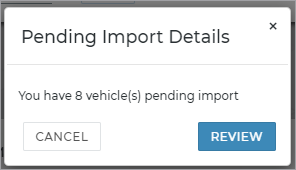
All units awaiting import are in Pending Import Details status. Upon logging into the application, if there is at least one unit awaiting import for your current location, you receive a prompt: "You have [X] vehicle(s) pending import." You can click to view a list of these units on the Fleet Hub.
Otherwise, you can view a list of units awaiting import:
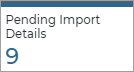
- Fleet Operations Dashboard (
 ). Click the Pending Import Details status tile.
 - Fleet Hub Status search filters. Under the Status search filter on the left panel of the Fleet Hub, click the Pending Import Details check box.
Import a unit to the fleet
When a unit is ready for import, you can quickly access the unit on your ‘Home’ screen and import the vehicle to your active fleet.
- View units pending import. (The easiest way is to click the "Pending Import Details" tile from your Home screen.
- Click next to the unit record.
- On the Import From Feed dialog, fill in required fields (*). Make sure to update the current miles and fuel level. Some fields may be set by your manufacturer and unavailable for editing. See "Restrictions to Importing FLeet" for more information.
- Click . The following occurs:
- The unit's status is set to Ready and it is available for use.
- For locations with rates set up, if a new unit's model is not yet associated with a Model Group, a brief message is displayed in the bottom-left corner of the screen: "You have X model(s) pending Model Group association." See "Model Groups (Rates setting)" for more information about associating models with Model Groups.
Remove a unit from your Pending Import Details feed
If your location allows removal of a pending import unit, your employee role must have the Remove From Fleet (Feed) permission to remove a unit from your Pending Import Details feed, and to restore a unit the feed (for example, if it was removed by mistake). See "Roles & Permissions".
Removing a unit from your Pending Import Details fleet feed sets the unit status to Remove From Pending Import.
- Search for a unit record with a status of Pending Import Details using the Removed From Pending Import search filter check box on the left panel of the Fleet Hub.
- Click .
- ATMS GEN2.0 displays a confirmation. Click to proceed or to cancel the action.
"Status" events are logged in the unit's history, accessible from the History button on the side panel of the unit record.
Restore a unit to your Pending Import Details feed
Your employee role must have the Remove From Fleet (Feed) permission to remove a unit from your Pending Import fleet feed, and to restore a unit to your fleet feed. See "Roles & Permissions".
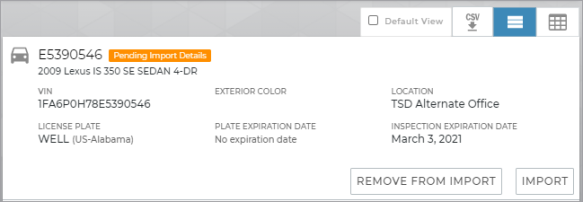
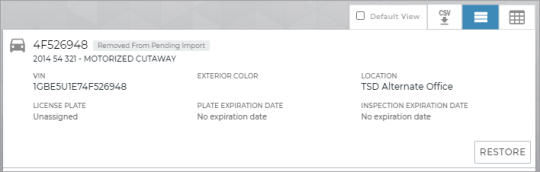
In case a unit is removed from pending import by mistake, a button is available for these units for you to undo the removal from the fleet feed. Restoring a unit to your fleet feed sets the unit status back to Pending Import Details.
- On the Fleet Hub, search for the unit record by entering the VIN and selecting the Removed From Pending Import search filter check box on the left panel.
- Click to restore a unit to Pending Import Details.
- ATMS GEN2.0 displays a confirmation. Click to proceed or to cancel the action.
- You can now import this unit to the fleet. See "Import a unit to the fleet".
"Date Added" and "Status" events are logged in the unit's history, accessible from the History button on the side panel of the unit record.
Two main components are involved in the automated fleet import process:
- InfinitiRDR.exe Web Service and/or the Fleet Import Web Service (FleetImportWS). For some OEMs (Porsche, Mercedes-Benz, Lexus, previously Infiniti), this is a two-step process, where the InfinitiRDR.exe Web Service processes import and defleet (rewind) RDR files provided via sFTP, then passes data to the Fleet Import Web Service (FleetImportWS) API endpoint to insert records into TradingPartner FleetImportAdd table on the TSD server.
- ATMS GEN2.0 (web). A dealer an access the list of Pending Import Details units and complete the import process to add the unit to the active fleet.
Other OEMs (BMW, Mazda, Hyundai, Genesis, Subaru) communicate with the FleetImportWS API directly, skipping InfinitiRDR.exe.
InfinitiRDR.exe Web Service
Infiniti, Porsche, Mercedes Benz, and Lexus send TSD fleet import/defleet files (via sFTP) on a daily bases.
The InfinitiRDR.exe Web Service, which runs hourly, does the following:
- Opens and decrypts (and later, archives and deletes) RDR files that contain new unit and customer records to be imported, as well as "rewind" (defleet) files that contain units to be removed from the fleet.
- The process calls the Fleet Import Web Service (FleetImportWS) and passes STAR Standard (Standards for Technology in Automotive Retail) Payload constructed from the RDR File. That way, a record can be created for each unit in the RDR file.
- Consumes TSDLoaner.LoanerInterface.asmx and passes loaner connection string and CustProfile Class constructed from RDR file.
Fleet Import Web Service (FleetImportWS)
Some OEMs (BMW, Mazda, Hyundai, Genesis, Subaru) communicate with the FleetImportWS directly via API, as opposed to having InfinitiRDR.exe decrypt files provided by sFTP.
Fleet Import REST API
The FleetImport endpoints can be used for importing units into ATMS GEN2.0.
FleetImportWS Logging (AppLogs)
Import activity is logged in the AppLogs.FleetImport table and in the Tradingpartner.FleetImportAdd table.
Applogs.FleetImport includes the following columns for Fleet Import records:
- FleetImportID: Automatically generated identification number for the import
- FleetImportDate: GetDate
- TSDNumber: The TSD Number is derived from AppLogs1 db table INFINITY_DEALERSHIPS. Units can be imported to different locations under the same TSD number, as long as the user has access to the location.
- MethodCall: 'FleetImportWS Cirro FleetImport'
- OEMNumber: Xml's ApplicationArea.Sender.DealerNumber
- ImportXml: STAR Standards ProcessRetailDeliveryReporting payload .
- ImportServer: Machine server name
- CorrelationID: guid (Corresponds to AppErrors.CorrelationID)
- Product: 'Cirro' or 'Drive' (from TradingPartner.Custprofile.Product)
- OEMName: OEM Name (e.g., Porsche)
- Make: Make of unit (e.g., Porsche)
- VIN: VIN being processed, from the xml fleet import record
- Process. For example, Import, Remove, Backout (BMW only), or Buyback (BMW only)
- FleetImportAddID: TradingPartner.FleetImportAdd.ID value that is a result of the web request specified in the current record
- Msg, showing the results of each process.
The TSD Number is derived from AppLogs1 db table INFINITY_DEALERSHIPS.
- In the atlasadmin database, there must be a dealership record with the DealerNumber being sent with the SOAP request to FleetImportWS. The Dealer Number maps to the TSD Number.
- Any information for the unit that is sent from the OEM is populated. If the OEM sends a blank field, the ChromeData service is then called to get that specific missing information for the unit.
- Duplicate unit records are not imported.
- The OEM Dealer Number when mapping to fleet import to a dealer location.
- FleetImportAdd.SaleCategory is set to 6 (to indicate a loaner vehicle) or F (to indicate a shuttle vehicle).
OEM-Specific Support & File Specifications
Import Process (Life Cycle)
- Unit is added into the OEM system for the Retail Delivery Report (RDR) process. It is entered with the the appropriate Fleet Type (e.g., Loaner or Shuttle). FleetImportAdd.SaleCategory is set to 6 (to indicate a loaner vehicle) or F (to indicate a shuttle vehicle).
- Import file is sent from the OEM to TSD. On a daily basis, a file is sent to TSD via FTP, containing new units to be imported. (A "rewind” file is also sent with units to be removed from the fleet, if possible, or flagged for removal, if in use, or removed from pending import, if already pending import details. See "Rewind File" for more information.)
- The new unit is processed and given a status of Pending Import Details. Based on the contents of the file, the Fleet Import Web Service (FleetImportWS) imports the unit, or removes the unit from the applicable fleet. FleetImportWS sends this information to ATMS GEN2.0, which gives the unit a status of Pending Import Details.
- (BMW) BMW has three (3) values for Identifying a dealership: Dealer Number / Center ID (e.g., 12345), AG Number, and Location ID. The CenterID, issued by BMW of North America, and AGNumber, issued by Germany, for some dealers is the same. If a transaction comes in and there are two records with matching DealerNumber, AGNumber and LocationCode, then it will look at OEMGroup and unit make to determine to which location the vehicle should be assigned.
- In ATMS GEN2.0, the unit can either be added to the fleet or removed from pending import. When a unit is added, it has a status of Ready.
- The Date Added is set to the current date
- The Service Start Date, provided by Infiniti as the Sold Date (SOLD_DATE) during the RDR process, is set and unavailable for editing, based on the Lock Service Start Date management setting.
- (Infiniti) TSD sends the new unit to BI Worldwide. On a daily basis, TSD sends two .txt files via FTP to BI Worldwide for each account: 1) Fleet Size 2) Added (Imported) & Removed Units, which contains the new unit’s Date Added and Service Start Date. See "Fleet Size & In/Out Service for Infiniti (BI Worldwide)" for more information.
- The unit is removed from the fleet. The unit is used on agreements until it reaches its Turnback Date or Turnback Miles and must be removed from the fleet.
- (Infiniti) TSD sends the removed unit to BI Worldwide. On a daily basis, TSD sends two .txt files via FTP to BI Worldwide for each account: 1) Fleet Size 2) Added (Imported) & Removed Units, which contains the removed unit’s Service End Date. Removed units are reported to BIW for 60 days after the units are removed. See "Fleet Size & In/Out Service for Infiniti (BI Worldwide)" for more information.
BMW / MINI Fleet Import
The Fleet Import functionality automates the BMW in-fleeting process, leveraging the vehicle information provided by BMW of North America, LLC to create new unit records during the Retail Delivery Report (RDR) process for an Aftersales Mobility Program (AMP) vehicle.
BMW has three identifying values for dealers in their fleet import payload, in addition to the Make:
- <DealerNumber> (also known as the CenterID, a BMW term)
- <ZoneCode> (also known as the OEMNumber, or AGNumber, a BMW term)
- <LocationID> (also known as the OEMCode, which is the BMW Location Code from the BMW system, not ATMS GEN2.0).
The BMW fleet import process uses the following matching process, where if a match is found, the unit is imported to the fleet:
- The process searches for a unique match within the tenant based on DealerNumber + ZoneCode + LocationID + Make.
- If a unique match is not found, then the system attempts to find a unique match based only on DealerNumber + ZoneCode + LocationID (without the Make).
- If a unique match is not found, the system attempts to find a unique match based only on DealerNumber + Make.
- If a unique match is not found, then the following error is returned: "Location(s) not found for dealer number”.
Infiniti Fleet Import
RDR for Fleet & Customer Imports
File Name: TSD_Daily_RDR_file_YYYYMMDD.txt (e.g., TSD_Daily_RDR_file_20140426_201405050835.txt)
File contents
| Field | Description | Start | End | Length |
|---|---|---|---|---|
| VIN | Unit's VIN (e.g., JN1BV7AP0FM347119) | 1 | 17 | 17 |
| Make | Unit's Make (e.g., Infiniti) | 18 | 19 | 2 |
| Model | Unit's Model | 20 | 22 | 3 |
| Model Code | Model Code of unit | 23 | 27 | 5 |
| Year | Year of unit | 28 | 29 | 2 |
| New-Used-SW | 30 | 30 | 1 | |
| Color | Exterior Color of unit | 31 | 35 | 5 |
| Trim | Trim of unit | 36 | 36 | 1 |
| Received Date | Date unit was received by the manufacturer | 37 | 44 | 8 |
| Selling Dealer | OEM Dealer Number that receives the unit or customer | 45 | 49 | 5 |
| Sold Date | The RDR date to be used as the unit's Service Start Date, or in-service date. | 50 | 57 | 8 |
|
Sale Type |
Sale Type code for the customer or unit record.
Note: As of June 2023, Infiniti ended its Pre-Owned program and is no longer sending Pre-Owned units (Sale Type = T) through fleet import. |
58 |
58 |
1 |
| MFG Date |
|
59 | 66 | 8 |
| Retail Date | 67 | 74 | 8 | |
| Action Flag | 75 | 76 | 2 | |
| Driver-Title | Title of customer (e.g., Mrs) | 77 | 79 | 3 |
| Driver-First-Name | First Name of customer (e.g., John) | 80 | 94 | 15 |
| Driver-Middle-Name | Middle Name of customer | 95 | 104 | 10 |
| Driver-Last-Name | Last Name of customer (e.g., Smith) | 105 | 124 | 20 |
| Driver-Date-Of-Birth | Date of Birth of customer | 125 | 132 | 8 |
| Driver-Address-1 | Address Line 1 of customer address | 133 | 172 | 40 |
| Driver-Address-2 | Address Line 2 of customer address | 173 | 192 | 20 |
| Driver-City | City of customer address | 193 | 212 | 20 |
| Driver-State | State abbreviation of customer address (e.g. MA) | 213 | 214 | 2 |
| Driver-Zip | Zip Code of customer address (e.g., 01845) | 215 | 219 | 5 |
| Driver-Day-Phone | Phone Number of customer | 220 | 232 | 13 |
| Driver-Eve-Phone | Phone Number of customer | 233 | 245 | 13 |
| Driver-Email-Address | Email Address of customer | 246 | 325 | 80 |
| Owner-Title | 326 | 328 | 3 | |
| Commercial-Salevalue 'C' | C | |||
| Owner-First-Name | First Name of owner(e.g., John) | 329 | 343 | 15 |
| Owner-Middle-Name | Middle Name of owner | 344 | 353 | 10 |
| Owner-Last-Name | Last Name of owner(e.g., Smith) | 354 | 373 | 20 |
| Owner-Date-Of-Birth | Date of Birth of owner | 374 | 381 | 8 |
| Owner-Address-1 | Address Line 1 of owner address | 382 | 411 | 40 |
| Owner-Address-2 | Address Line 2 of owner address | 412 | 441 | 20 |
| Owner-City | City of owner address | 442 | 461 | 20 |
| Owner-State | State abbreviation of owner address (e.g. MA) | 462 | 463 | 2 |
| Owner-Zip | Zip Code of owner address (e.g., 01845) | 464 | 468 | 5 |
| Owner-Day-Phone | Phone Number of owner | 469 | 481 | 13 |
| Owner-Eve-Phone | Phone Number of owner | 482 | 494 | 13 |
| Owner-Email-Address | Email Address of owner | 495 | 574 | 80 |
| 10RS14-COMMERCIAL-NAME-1PIC X(18). | 18 | |||
| 10RS14-COMMERCIAL-NAME-2PIC X(15). | 15 | |||
| SALESMAN-IDPIC X(20). | 20 | |||
| 05FILLERPIC X(80). | 80 | |||
| 01RS14-WTR-HEADER-RECORDREDEFINES | ||||
| RS14-WTR-RETAIL-RECORD | ||||
| HEADER-FLAG | 6 | |||
| HEADER | HEADER | |||
| FILLER | 74 |
File Sample
INF202010LOC0100cIN50 9181414NNAH G20201006LOC0120201231A201310292014041906 HUNG GREEN 1424 W PLYMOUTH ST BROKEN ARROW OK740129182868899 9182511121 HUNGHUYNH909@YAHOO.COM C SRVC INFINITI FINANCIAL PO BOX 660368 DALLAS TX752668006274
INF202010LOC0200cINX608411414NFAJ G20201006LOC0220201231A201310032020123106 SEEGRASS SEEGRASS 5801 MADISON AVE TAMARAC FL333219544202284 9544202284 NONE@NONE.COM C T TT OF LIGHTHOUSE P 5801 MADISON AVE TAMARAC FL333219544202
INF202010LOC0101cIN50 9181414NNAH G20201006LOC0120201231A201310292014041906 HUNG GREEN 1424 W PLYMOUTH ST BROKEN ARROW OK740129182868899 9182511121 HUNGHUYNH909@YAHOO.COM C SRVC INFINITI FINANCIAL PO BOX 660368 DALLAS TX752668006274
Rewind File
File Name: Daily_Rewind_File_yyyymmdd (e.g., Daily_Rewind_File_20201021.txt)
On a daily basis, the InfinitiRDR processes Rewind files sent (via sFTP) by Infiniti, along with the Import RDR files. Rewind files contain units to be removed from the fleet immediately, if possible; flagged for removal from the fleet, if In Use; and removed from pending import, if Pending Import Details.
Results of Unit Removal:
- If the unit status is Pending Import Details, the unit's status is set to Removed From Pending Import.
- If the unit status is not In Use, the status is set to Removed From Fleet.
- If the unit status is In Use, the unit is Flagged for Auto Removal and will be automatically set to Removed From Fleet when the unit is returned at close agreement.
File contents (pipe-deliminated)
| Column Name (not included in file) | Description | Length |
|---|---|---|
| VIN Prefix | First 11 digits of the unit's VIN (e.g., JN1BV7AP0FM). | 11 |
| VIN Serial | Last 6 digits of the unit's VIN (e.g., 347119). | 6 |
| Rewind Date | Date the Rewind file is generated. | 8 |
| Retail Date | 8 | |
| Model Code | 5 | |
| Model Year | 2 | |
| Owner Title | (e.g., MR or MRS) | 3 |
| Owner First Name | (e.g., JOHN) | 15 |
| Owner Last Name | (e.g., SMITH) | 18 |
| Dealer Number | OEM Dealer Number for the dealership. In order for the rewind file to be processed, this must be numeric, not alphanumeric. (TSD Numbers such as 21126QA, 51038T, and 21480Tc cannot be processed.) If a dealer cannot be identified based on its Dealer Number, ATMS GEN2.0 skips this row. | 5 |
| Region | 2 | |
| Filler | 7 |
Sample Rewind File
Kia Fleet Import
The Kia Fleet Import Hangfire job (Kia-Fleet-Import) supports automated fleet import, defleet, and reinstatements for Kia locations by processing an inbound file from Kia. See "Fleet Import for Kia (Inbound)" for more information.
Mazda Fleet Import
File Contents
| Column (not included in file) | Description | Length |
|---|---|---|
| OEM Name | Name of OEM (e.g., "PORSCHE") | 17 |
| OEM Number | OEM Dealer Number (e.g., "45007") | 7 |
| VIN |
Unit's VIN (e.g., JN1BV7AP0FM347119) |
2 |
| Make | Make of unit (e.g., "MAZDA") | |
| Model | Model of unit (e.g., "Miata") | 5 |
| Model Year | Year of unit (e.g., "2020") | 2 |
| Interior Color | Interior color of the unit; may be a full description (e.g., "black") | 1 |
| Exterior Color | Exterior Color of unit; may be a full description (e.g., "mica") | 5 |
| Service Start Date (or In-Service Date) | The RDR date to be used as the unit's Service Start Date (e.g., "11/22/2021"). | 1 |
| Reference ID |
An alphanumeric Reference ID value of up to 20 characters that may be provided and then displayed on the unit record, but is not required for import. |
20 |
| Delivery Mileage | The mileage at the time of RDR (e.g., "10"). | 8 |
| Tank Size | Tank Size, in gallons (e.g., 21) | 5 |
Sample
Sample Hyundai payload received to FleetImportWS web service REST endpoint for a Certified Pre-Owned (CPO) unit:
Hyundai and Genesis Fleet Import
File Contents
| Column (not included in file) | Description | Length |
|---|---|---|
| OEM Name | Name of OEM (e.g., "HYUNDAI") | 17 |
| OEM Number | OEM Dealer Number (e.g., "OH041") | 7 |
| VIN |
Unit's VIN (e.g., 5NMS33AD1KH073769) |
2 |
| Make | Make of unit (e.g., "HYUNDAI") | |
| Model | Model of unit (e.g., "SANTA FE SEL 2.4 FWD") | 5 |
| Model Year | Year of unit (e.g., "2020") | 2 |
| Interior Color | Interior color of the unit; may be a full description (e.g., "BLACK") | 1 |
| Exterior Color | Exterior Color of unit; may be a full description (e.g., "BRONZE") | 5 |
| Service Start Date (or In-Service Date) | The RDR date to be used as the unit's Service Start Date (e.g., "2021-11-22T15:57:00-05:00"). | 1 |
| Reference ID |
An alphanumeric Reference ID value of up to 20 characters that may be provided and then displayed on the unit record, but is not required for import. For Hyundai and Genesis, Certified Pre-Owned (CPO)-eligible units (that is, brand new units or units that were once in the fleet but have since been removed) can be identified by the ReferenceID value being one of the following, based on the CpoOemsReferences appsetting:
|
20 |
| CreationDateTime | Creation Date and time | |
| Delivery Mileage | The mileage at the time of RDR (e.g., "25624"). | 8 |
| SaleCategory |
Sale Type code for the unit record |
|
| Tank Size | Tank Size, in gallons (e.g., 21) | 5 |
Sample request from Hyundai
Sample Hyundai payload received to FleetImportWS web service REST endpoint for a Certified Pre-Owned (CPO) unit:
Porsche Fleet Import
The Fleet Import process for Porsche uses the InfinitiRDR.exe Web Service.
Import Process
- The InfinitiRDR.exe Web Service is used to open and decrypt Fleet Import files provided (via sFTP) by Porsche for imports into Porsche Dealers (POR01 and POR04) and into Porsche Corporate (POR02).
- InfinitiRDR.exe sends this information to the Fleet Import Web Service (FleetImportWS) STAR Standards ProcessRetailDeliveryReporting endpoint.
- Based on the contents of the file, the Fleet Import Web Service (FleetImportWS) imports the unit to the Porsche location's Service Loaner fleet (POR01) or Drive fleet (POR04), or removes the unit from the applicable fleet. FleetImportWS sends this information to ATMS GEN2.0 by calling to Cirro External.
- Fleet import activity is logged in the AppLogs.FleetImport table.
- After a Porsche Dealer unit is imported into ATMS GEN2.0, Atlas AssetSubsidyMilestone records are created for the unit, one for each of the seven Subsidy Types (SubsidyTypeCode). Each record contains the:
- AssetID of the unit from the Automobile table
- Subsidy Pay Amount (SubsidyPayAmount) and Subsidy Pay Cap (SubsidyPayCap) values from the Subsidy Pay Details management setting. If SubsidyPayAmount or SubsidyPayCap values do not exist for the SubsidyType, it will be set to -1.
- After a unit is added to the active fleet from a Pending Import Details status, ATMS GEN2.0 applies a subsidy milestone cap date to a unit (AssetSubsidyMilestone.AssetSubsidyDate) for each category of subsidy (Warranty, Customer Pay, and Delivery and Collection), based on Service Start Date + Subsidy Milestone Cap Days management setting configurations.
Import File Specifications
File Name
TSDFLEETSL_YYYY (e.g., TSDFLEETSL_201606271205.csv)
File Contents
| Column (not included in file) | Description | Length |
|---|---|---|
| OEM Name | Name of OEM (e.g., "PORSCHE") | 17 |
| OEM Number | OEM Dealer Number (e.g., "45007") | 7 |
| VIN |
Unit's VIN (e.g., JN1BV7AP0FM347119) |
2 |
| Commission Number |
If provided, for Porsche Corporate (POR02) only, this 6-character alpha-numeric value is used as the unit's Unit Number; if blank, the last eight characters of the VIN are used as the Unit Number. For Porsche Dealer (POR01), the Commission Number is not used for the Unit Number. |
6 |
| Make | Make of unit (e.g., "PORSCHE") | |
| Model | Model of unit (e.g., "CAYENNE") | 5 |
| Year | Year of unit (e.g., "2020") | 2 |
| Interior Color | Interior color of the unit; may be a full description (e.g., "Leather Interior in Black") | 1 |
| Exterior Color | Exterior Color of unit; may be a full description (e.g., "Carmine Red") | 5 |
| Service Start Date (or In-Service Date) | For Service Loaners (POR01), this is the RDR date to be used as the unit's Service Start Date (e.g., "11/22/2020"). | 1 |
| Delivery Mileage | The mileage at the time of RDR (e.g., "10"). | 8 |
| Tank Size | Blank | 5 |
| Event |
For Porsche Dealers with Service Loaner fleet (POR01) or Drive fleet (POR04): The Event column determines whether the unit will be imported to the Service Loaner fleet (POR01) or Drive fleet (POR04), or whether the unit will be removed from the applicable fleet.
The Event is saved to cFleet01.Curr_Note and FleetImportAdd.SalesCategory (along with the previous status of the unit). If an Event designed for Porsche Corporate accounts (POR02) is mistakenly included, the import does not occur and the error is logged in the AppLogs.FleetImport table ("POR01 Invalid Event"). For Porsche Corporate fleet (POR02): Fleet Arrived Port (status 100) or Fleet In Service (status 99) |
8 |
File Sample
Porsche,10001,WP1AA2AY8LDA10210,,Porsche,Cayanne,Cayanne,2020,Pink,Moonlight Blue Metallic,8/4/2020,10,,In-Service SL
Porsche,10001,WP0CB2A80GS140541,,Porsche,911,911,2020,Leather Interior in Black,Carmine Red,8/4/2020,10,,Drive In
Porsche,10001,WP0CB2A90CS754069,,Porsche,911,911,2020,Leather Interior in Black,Carmine Red,8/4/2020,10,,Drive Out
Maserati Fleet Import Process
This process is applicable for Maserati (MAS01) locations.
On a daily basis, Maserati sends TSD (via sFTP) two .csv files: 1) units to be added to the fleet, and 2) units to be removed from the fleet.
Import Process (Life Cycle of a Unit)
- New units are sent (via sFTP) to TSD in a Fleet Import file (TSD_DEALER_Fleet_Import_File-YYYYMMDD.csv).
- The new unit is processed by TSD for automated Fleet Import. It is given a status of Pending Import Details and added to the Pending Import Details feed, so dealers can finish filling in required information and import the unit to the active fleet.
- In ATMS GEN2.0, the unit can either be added (imported) to the fleet or removed from pending import. When a unit is added, it has a status of Ready.
- The unit is used on agreements until it reaches turnback and must be removed from the fleet. It can either be removed within ATMS GEN2.0, or Maserati can initiate the automatic removal process. In the latter case, removed units are sent (via sFTP) to TSD in a Defleet Import file (TSD_DEALER_Defleet_Import_File-YYYYMMDD.csv).
Volvo Cars Fleet Import & Removal
Automated fleet import and removal for Volvo Cars is handled through API, specifically between ATMS GEN2.0 and two Volvo Cars APIs, Service Loaner Inventory API and GRIP Order API
This process can be initiated in two ways:
- (Daily) The Volvo Cars Fleet Import Hangfire job (Volvo-Fleet-Import).See "Fleet Import for Volvo Cars".
- (On Demand) The Volvo Fleet Import tool in TSDAdmin.See "Volvo Fleet Import (TSDAdmin)".
Stellantis Fleet Import Process
On a daily basis, Stellantis sends TSD (via sFTP) a .csv file of "approved" units that are ready to be processed by TSD for fleet import (in other words, vehicles that have been NVDR'ed in the CTP Portal on DealerCONNECT), as well as units that should be removed from the fleet. See "Fleet Feed for Stellantis (Inbound)" for more information.
Import Process (Life Cycle of a Unit)
- Unit is NVDR'ed in the CTP Portal on DealerCONNECT.The NVDR process typically takes one business day, if NVDR'd by 9:00PM, and there is no NVDR on Saturday through Monday. So, a vehicle that is NVDR’d after Friday at 9:00PM will be available for import in the application on Tuesday morning.
- TSD sends Stellantis (via sFTP) a Nightly Fleet Feed file (CTP_VIN_IN_YYYY_MM_DD.csv) containing newly-added units and removed units, so Stellantis can approve individual VINs for fleet import.See "Nightly Fleet Feed for Stellantis (Outbound)"
- Unit is sent (via sFTP) to TSD in a Daily Fleet Feed file (CTP_VIN_V2_OUT_YYYY_MM_DD.csv).See "Fleet Feed for Stellantis (Inbound)".
- The new unit is processed by TSD for automated Fleet Import and given a status of Pending Import Details and CTP Approved. New units are stored in the CirroFeed table.
- In ATMS GEN2.0, the unit can either be added (imported) to the fleet or removed from pending import. When a unit is added, it has a status of Ready. The Date Added is set to the current date, and the Service Start Date is the NVDR Date provided by Stellantis, and cannot be edited.
- The newly-added unit is sent to PDP Group. After the unit is added (set to Ready from Pending Import Details), it is included in the daily file to PDP Group for Stellantis locations that have a PDP-insured fleet.
Unit Removal Process
- The unit is removed from the fleet. The unit is used on agreements until it reaches its Turnback Date or Turnback Miles and must be removed from the fleet. It can either be removed within ATMS GEN2.0, or Stellantis can initiate the automatic removal process by removing the unit in the NVDR system and sending the removal request to TSD.
- If manually removed within ATMS GEN2.0: TSD sends Stellantis (via sFTP) the removed unit in the Nightly Fleet Feed file (CTP_VIN_IN_YYYY_MM_DD.csv).
- If the removal is initiated by Stellantis: The unit will be automatically removed from the fleet, if possible. If the unit is currently In Use on an agreement, the unit is flagged for auto removal from the fleet upon its return (after the agreement is closed).
- The removed unit is sent to PDP Group. After the unit is removed from the fleet, it is included in the daily file to PDP Group for Stellantis locations that have a PDP-insured fleet. See "PDP Insurance Feed (Outbound)".
Lexus Fleet Import
This process is used for automated fleet import and defleet for Lexus / Toyota.On a daily basis, Lexus sends TSD (via sFTP) a .csv file listing every in-service VIN for each dealer. ATMS GEN2.0 adds new units to the Pending Import Details queue, with information from the file used on the unit record, as well as removes units from the fleet or reinstates removed units to the fleet, as applicable.See "Fleet Inventory Feed from Lexus (Inbound)" for more information about this process, file contents, and more.
Rivian Fleet Import
The Rivian Fleet Import Hangfire job (Rivian-Fleet-Import) supports automated fleet imports (including directly adding to the fleet, if critieria is met), updates, and defleets for Rivian locations using sFTP.
- Rivian provides ATMS GEN2.0 with a file via sFTP.
- ATMS GEN2.0 retrieves the file and:
- adds new VINs directly to the active fleet (skipping the Pending Import Details feed), as long as a valid license plate is provided. If not, they are added to the Pending Import Details feed, so Rivian dealers can add these units to the active fleet.
- adds current Pending Import Details units to the active fleet if an updated license plate is provided.
- defleets (removes) VINs from the active fleet in ATMS GEN2.0 if a Service End Date is provided.
Volkswagen Fleet Import
The Volkswagen Fleet Import Hangfire job (Volkswagen -Fleet-Import) supports automated fleet import and defleet for Volkswagen locations using sFTP.
TSD retrieves the file and adds new VINs to the Pending Import Details feed so Volkswagen dealers can add these units to the active fleet, as well as defleets active VINs in ATMS GEN2.0 not present in the file.
See "Fleet Import for Volkswagen (Inbound)" for more information.
Troubleshooting
What if BMW wants to re-import the same unit (say, to correct a mistake)?
If a BMW dealer performs the RDR incorrectly by sending a unit into fleet import as a shuttle instead of a loaner, the dealership can contact BMWNA to initiate the backout process. As a result of the backout, in ATMS GEN2.0, the unit is automatically removed from pending import if a user has not already done so manually. The dealer must then RDR the unit again so it will show up in the fleet import as the correct type of unit (e.g., Loaner instead of Shuttle).
How can TSD Support locate units that were processed for import with incorrect information?
TSD can use the Fleet Import Utility page in TSDAdmin to view all units that have been processed by TSD for Fleet Import and are in Pending Import Details status, but have not yet been added (imported) to the active fleet by the location, including units that have no associated TSD Number or Dealer Number. See "Fleet Import Utility".
Glossary of terms
Battery Level (%)
Note: These fields are only displayed for electric vehicles (units with a Fuel Type of Electric). Gas vehicles use Fuel Level.
For electric vehicles in your fleet, the Battery Level (%) represents the percentage measurement of the electric charge remaining in the vehicle's battery (e.g., 80%).
You may see this referenced on unit records, agreements, and reports throughout the application:
- Current Battery Level (%): The current battery level percentage recorded in the unit's record; when assigning a unit to an open agreement, this field is displayed for reference only and cannot be edited.
- Battery Level Out (%): The current battery level percentage recorded at the time the unit is assigned to an open agreement; at return during an exchange or close agreement, this field is displayed for reference only and cannot be edited.
- Battery Level In (%): The current battery level percentage recorded at the time the unit is returned during an exchange or close agreement.
Note that, when an agreement is closed, a unit's returning information is saved as a snapshot, so that if the agreement is re-opened in the future, even if the Fuel Type of that unit has changed to gas, the agreement still displays the battery level at the time the agreement was opened.
Body Style
The unit's Body Style (e.g: Sedan 4-DR or Convertable 2-DR). On new units, this is filled in automatically based in the VIN, but you can change it, if necessary. For automatically imported units, if the Body Style cannot be determined through the import, this field is set to “Other.”
Current Location
The Current Location on a unit record is the current physical location of the unit, as opposed to the Owner Location, which is the financial owner of the unit.
Note: On the mobile app, neither the Current Location nor the Owner Location can be edited.
On the web, restrictions may be applicable when it comes to changing a unit's current and/or owner location, based on your manufacturer's program guidelines. These are applicable when adding and editing a unit record.
- Units owned by a BMW location cannot have their current locations moved to MINI locations, and vice versa.
Enable Connected Car
Updates to this field are logged in the unit history, accessible via the History button on the side panel of a unit record. See "Unit History (Event Logging)" for more information.
Notes:
- For locations with auto-enrollment, this setting is turned on, by default. Auto-enrollment is supported by certain providers; contact your TSD sales representative for more information.
- For locations with device-based Telematics, this field is turned on and off automatically when a unit is enrolled or unenrolled, respectively.
If a unit's Owner Location has TSD Telematics, the Enable Connected Car toggle indicates whether a unit is enrolled in Telematics, making the unit a "Connected Car".
- :For locations with device-based Telematics, this field is turned on and off automatically when a unit is enrolled or unenrolled, respectively, but may be available for editing, depending on your provider and manufacturer.
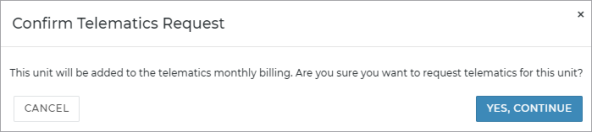
- For locations using direct-connect Telematics, this field may be available to manually enroll or unenroll a unit,depending on your manufacturer. When selected, a Confirmed Telematics Request message is displayed: "This unit will be added to the telematics monthly billing. Are you sure you want to request telematics for this unit?" Click to continue enrolling the unit in Telematics, or to cancel and return to the unit record. See "TSD Telematics" for more information.
Exterior Color
Updates to this field are logged in the unit history, accessible via the History button on the side panel of a unit record. See "Unit History (Event Logging)" for more information.
While optional, the Exterior Color of a unit is a useful field to fill in, as customers may request a specific colored unit at the counter.
Fuel Capacity
Unit’s fuel capacity or tank size in gallon or liters, depending on your system's Fuel Capacity Unit management setting.
Fuel Level
Note: These fields are only displayed for gas vehicles (units with a Fuel Type of Gas). Electric vehicles use Battery Level.
For gas vehicles in your fleet, the Fuel Level represents the amount of fuel in the unit's tank in eighths or sixteenths, depending on your system settings.
You may see this referenced on unit records, agreements, and reports throughout the application:
Other fuel-related fields:
- Current Fuel Level: The current amount of fuel in the unit's tank; when assigning a unit to an open agreement, this field is displayed for reference only and cannot be edited.
- Fuel Level Out: The current fuel level amount recorded at the time the unit is assigned to an open agreement; during an exchange (for the returning unit) or close agreement, this field is displayed for reference only and cannot be edited.
- Fuel Level In: The current fuel level amount recorded at the time the unit is returned during an exchange or close agreement.
Turn on a Low Fuel or Missing Fuel alert, so you can be notified when the fuel level of a unit is less than 1/4, when a unit is returned with less fuel than the Fuel Level Out. See "Alerts" for more information.
Note: Fuel and odometer may be automatically retrieved from a vehicle (for example, though an integration with Key Reader
Fuel Type

When adding or importing a unit to the fleet, you can use the Fuel Type selection to identify units as gas (the default) or electric vehicles.
Note that for Electric vehicles, the Battery Level (%) field replaces Fuel Level on unit records, and the agreements show the Current Battery Level (%), Battery Level Out (%), and Battery Level In (%) instead of fuel. Additionally, electric vehicles do not generate fuel charges, so if you have fuel charges set up, this charge for fuel is only displayed if a gas vehicle was assigned to the agreement, and is only applicable to the gas consumed, not the electric vehicle's battery.
Updates to this field are logged in the unit history, accessible via the History button on the side panel of a unit record. See "Unit History (Event Logging)" for more information.
Hard Hold
Updates to this field are logged in the unit history, accessible via the History button on the side panel of a unit record. See "Unit History (Event Logging)" for more information.
When editing a unit record, select the Hard Hold check box to prevent a unit of any status from being assigned to an appointment or agreement. When putting a unit on Hard Hold, you must also enter a reason (Hard Hold Reason).
Track the number of active units in your fleet placed on Hard Hold on your Fleet Operations dashboard. See "Fleet Operations & Performance Dashboards" for more information.
Hard Hold Reason
Updates to this field are logged in the unit history, accessible via the History button on the side panel of a unit record. See "Unit History (Event Logging)" for more information.
When a Hard Hold is applied to a unit, you must enter a reason of up to 100 characters (example: "Grounded for sales" or "Grounded for VIP customer").
Inspection Expiration Date
Updates to this field are logged in the unit history, accessible via the History button on the side panel of a unit record. See "Unit History (Event Logging)" for more information.
Expiration date of the unit's inspection sticker.
Track the number of units in your fleet with inspection stickers that are expired or expiring within 30 days on your Fleet Operations dashboard. See "Fleet Operations & Performance Dashboards" for more information.
Last Communication
For locations with Connected Car integration and unit records with Connected Car enabled, the Last Communication is the date and local time at which telematics were last provided. See "TSD Telematics" for more information.
License Plate
Permission required to edit this field: Edit License Plate
Unit’s license plate number; the combination of the license plate number and plate state must be unique for active units in your fleet. The plate must be unique for your region.
Make
Make of unit. On new units, the Make is filled in automatically based in the VIN, but you can change it, if necessary.
Available options may be based on the following management setting in Admin Setup: Restricted Make in Admin Setup (Management tab)
Miles
Updates to this field are logged in the unit history, accessible via the History button on the side panel of a unit record. See "Unit History (Event Logging)" for more information.
The Current Miles on a unit record reflects the current odometer reading of the unit.
Other odometer-related fields:
- Miles In: The unit's odometer reader at the time of return from an agreement or exchange. Depending on your manufacturer, this may be Customer Miles In and Dealer Miles In on Delivery and Collection agreements.
- Miles Out: The unit's odometer reading, at the time the unit is assigned to an agreement or exchange. Depending on your manufacturer, this may be Dealer Miles Out and Customer Miles Out on Delivery and Collection agreements.
Notes:
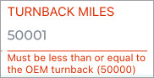
- Field validations and restrictions may be applied to this field.Read more.
- Using TSD Telematics Integration? This information may be retrieved from the device and automatically filled in. Read more.
- Using Key Reader integration? This information may be retrieved from the Key Reader service. Read more.
Model
Model of the unit. On new units, the Model is filled in automatically based in the VIN, but you can change it, if necessary.
Owner Location
Updates to this field are logged in the unit history, accessible via the History button on the side panel of a unit record. See "Unit History (Event Logging)" for more information.
A unit's Owner Location is the location that owns the vehicle, as opposed to the vehicle’s current location. When adding a new unit, this selection is unavailable and defaults to your current location. The Owner Location list contains locations to which you have viewership.
Note: On the mobile app, neither the Current Location nor the Owner Location can be edited.
On the web, restrictions may be applicable when it comes to changing a unit's current and/or owner location, based on your manufacturer's program guidelines. These are applicable when adding and editing a unit record.
- Units owned by a BMW location cannot have their current locations moved to MINI locations, and vice versa.
Plate Expiration Date
Permission required to edit this field: Edit License Plate
The expiration date of a unit's license plate.
Track the number of units in your fleet with plates that are expired or expiring within 30 days on your Fleet Operations dashboard. See "Fleet Operations & Performance Dashboards" for more information.
Updates to this field are logged in the unit history, accessible via the History button on the side panel of a unit record. See "Unit History (Event Logging)" for more information.
Service Start Date
The Service Start Date cannot be edited if the Lock Service Start Date management setting is enabled for your location or at the OEM level.
A unit's Service Start Date, or in-service date, represents the first day on which the unit becomes available for service and able to be used on appointments and agreements.
If your location manually adds units to the fleet, or if your location uses automatic fleet import but the Lock Service Start Date setting is not enabled for your location, the Service Start Date is set to the date on which the unit record is added to the active fleet from Pending Import Details (in other words, the unit record's Creation Date).
Otherwise, a unit's Service Start Date may be provided by your manufacturer during the automated fleet import process.
You can only import a Pending Import Details unit to the fleet if the Service Start Date is today or in the past. If the Service Start Date is a future date, then the unit cannot be imported yet. When clicking , a message is displayed: "Cannot import this unit prior to its In Service Date of MM/DD/YY."
- A unit's Service Start Date is set to the date the unit record was added (its Creation Date).
See "Automated Fleet Import" for more information about the import process.
Status
Your employee role must have the Fleet Status permission to change a unit's status.
Note: Depending on your manufacturer, the Status selection may be set to Recall and may be unavailable for editing if the unit has been assigned to a safety recall campaign, as indicated by a Recall tag on the unit record. This is to ensure no driver uses the unit until the recall campaign is completed. See "Vehicle Safety Recalls" for more information.
Updates to this field are logged in the unit history, accessible via the History button on the side panel of a unit record. See "Unit History (Event Logging)" for more information.
This is the unit's current status (example: Ready, In Use, or Maintenance). For a complete list of fleet statuses, see "Fleet Statuses" .
Subsidy / Idle Days
If your location uses automated fleet import, this column is present when viewing a list of units that are pending fleet import in table view ( ). It shows the number of days the unit has been in the Pending Import Details status, including today and the day it was received from your manufacturer. Once you add (import) the unit to your active fleet, Subsidy / Idle Days becomes 0.
Telematics ID
For locations with TSD Telematics (Connected Car integration) and units that have Enable Connected Car turned on in the unit record, the Telematics ID is the serial number on the telematics device used to provide fuel and mileage information. See "TSD Telematics" for more information.
Transponder ID
This field is only available with Toll Processing with TSD Connect integration. See "TSD Toll Connect: Toll Processing" for more information.
Updates to this field are logged in the unit history, accessible via the History button on the side panel of a unit record. See "Unit History (Event Logging)" for more information.
A Transponder ID is a unique identifier for the transponder device associated with the VIN being used for toll processing, for locations using Verra Mobility as the toll authority.
Note: When moving transponder devices between units, you must delete the Transponder ID from the unit record of the unit whose transponder you are removing, then add the Transponder ID to the unit record of the unit that is receiving the transponder.
Trim
Trim level of the unit. On new units, this is filled in automatically based in the VIN, but you can change it, if necessary. For automatically imported units, if the Trim cannot be determined through the import, this field is set to “Other.”
Turnback Date
If your manufacturer allows you to edit a unit's Turnback Date, your employee role must have the Edit Turnback Date permission to edit the Turnback Date field on a unit record. See "Roles & Permissions".
If your manufacturer does not allow you to edit a unit's Turnback Date, then the field cannot be edited, regardless of your employee role's permissions.
A unit's Turnback Date is the date after which the unit must be removed from service. This field is automatically set when a unit is added or imported to the fleet, based on its Service Start Date and the Dealer Turnback Days or your manufacturer's settings, if applicable,
When a unit reaches its Turnback Date, the status of the unit is automatically set to Turnback Reached so you can remove the unit from the fleet.
Turnback alerts warn employees when the Turnback Date is approaching. See "Unit Availability & Alerts" for more information.
Note: Separate settings for determining default Turnback may be managed by your manufacturer at the OEM level. If so, then restrictions may be in place when it comes to managing Turnback settings and editing Turnback fields.
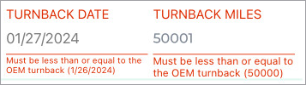
Depending on your manufacturer, you may not be allowed to manage Turnback Date settings or edit Turnback Dates at all, regardless of your permissions. See "Dealer Restrictions for Turnback" below for more information about restrictions.
Turnback Miles
Your employee role must have the Edit Turnback Miles / Kilometers permission to edit this value on a unit record. See "Roles & Permissions".
A unit's Turnback Miles / Kilometers is the odometer reading at which the unit must be removed from service. When it reaches this threshold, its status is automatically set to Turnback Reached so you can remove the unit from the fleet.
This field is automatically set when a unit is added or imported to the fleet, based on the Dealer Turnback (or your manufacturer's settings, if applicable).
Turnback alerts warn employees when the Turnback Date is approaching. See "Unit Availability & Alerts" for more information.
Note: Separate settings for determining default Turnback may be managed by your manufacturer at the OEM level. If so, then restrictions may be in place when it comes to managing Turnback settings and editing Turnback fields.
Depending on your manufacturer, you may not be allowed to manage Turnback Date settings or edit Turnback Dates at all, regardless of your permissions. See "Dealer Restrictions for Turnback" below for more information about restrictions.
Unit Notes
For situations that call for a unit-related note that is independent of any specific agreement, you can enter these notes in the Unit Notes text box when adding a unit (manually or using fleet import) or editing a unit record on the web or mobile app. The text box accepts up to 150 characters.
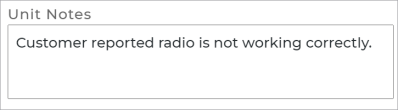
Once a note is added, you can view it on the unit record.
An event is logged in the unit's history when a note is saved.
Note: To protect customers’ sensitive data and ensure it is properly encrypted, you cannot save credit card numbers in notes and other text fields.
Unit Number
The Unit Number is the unit's unique identifier in the ATMS GEN2.0 system.
Unit Tag Number
If your location uses tag numbers, a Unit Tag Number can be assigned to a unit. Not to be confused with a unique Unit Number, the Unit Tag Number carries through the open and close agreement processes.
VIN
The unit's 17-character alphanumeric vehicle identification number (VIN), subject to VIN validation by the system when manually entered.
Year
Model year of unit, between 1970 and 2024. For automatically imported units, if the model's Year cannot be determined through the import, the current year is used as a default.
© 2026 TSD Rental, LLC